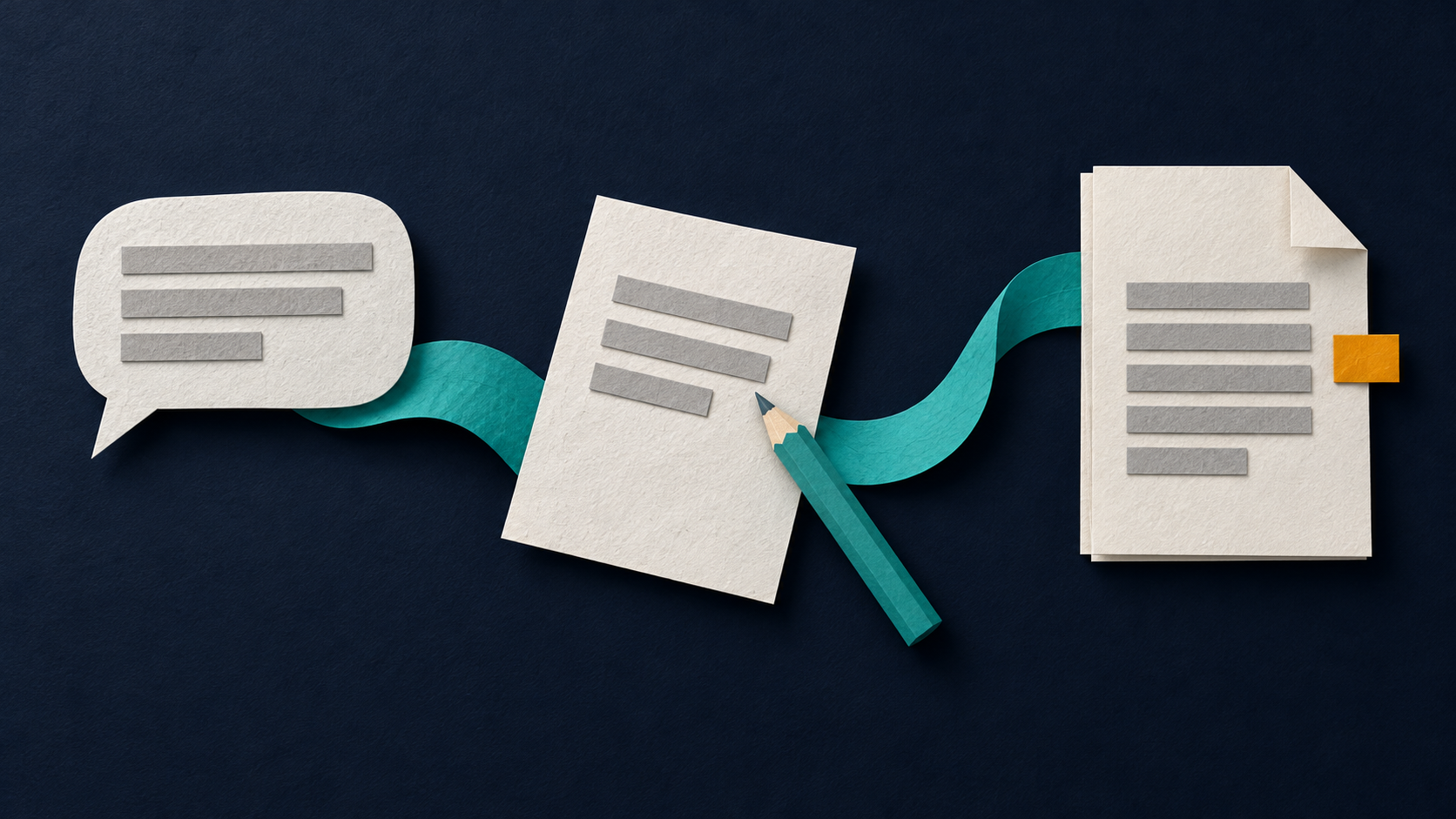
When a Copilot Chat answer is worth keeping, select the pencil under it to open a Page beside the chat, tidy it, then choose Create > Document > Open Word. You need a work account with OneDrive or SharePoint storage, or Microsoft 365 Personal, Family, Premium or Pro. Read every claim in the Word file before you attach it.
Steps follow Microsoft Support pages on Copilot Chat, Pages and converting a Page to Word, checked 30 September 2026. The Harbourline example is made up.
For sending a colleague a Copilot response or chat link instead, see How to share a Copilot response or chat at work.
Confirm account and storage first
You start from one answer in Copilot Chat, in the conversation where it already sits.
Access depends on your account and storage, and you don't need a Microsoft 365 Copilot licence. On a work or school (Entra ID) account, Microsoft says Pages works when you have SharePoint or OneDrive storage, including accounts without a Copilot licence. On a personal Microsoft account, you need Microsoft 365 Personal, Family, Premium or Pro.
If the pencil or Create button is missing, check which account you're signed in with and whether it has the storage above.
Open the answer as a Page
In Copilot Chat, open the conversation that holds the answer and select the pencil button under the response you want. Microsoft says this creates a Page and opens it beside the chat. Select the title on the Page to rename it.
Edit the Page directly, or highlight text and ask Copilot to revise it. Microsoft warns that asking Copilot Chat to update the Page can remove content from earlier in the conversation, so check the Page after each edit and put back any names, dates, figures or caveats you still need.
Send the Page to Word, then read every claim
When the Page is ready, select Create in its upper-right corner, then Document. Wait while Copilot prepares the draft, then select Open Word. Microsoft says the file opens in Word for the web.
Microsoft's page says converting a Page to a PowerPoint presentation is currently unavailable (checked 30 September 2026), so Word is the route when you need a file outside the Page.
Before you attach or forward the Word file, read every claim against the source behind the chat answer. Fix invented dates, missing owners and soft numbers in Word. The checks in how to check AI output before using it at work apply here.
Example: Harbourline chase reply into Word
Say you have a Copilot Chat draft chasing Harbourline Logistics for a new cutover window after a missed Friday slot. It names two open decisions and a proposed go-live date, and you need it as a Word file for the programme share. You select the pencil under that response, rename the Page to Harbourline chase 22 Sep, cut the aside that mentions an internal budget ceiling, then choose Create > Document > Open Word.
In Word, check that the go-live date and decision owners still match the thread you trust. If an edit on the Page dropped a caveat, put it back before anyone else opens the file.
Sources
Microsoft Support, Draft content with Microsoft Copilot Chat and Copilot Pages. Pencil under a response, Page beside chat, the warning that earlier content may be removed, Entra storage without a Copilot licence, and personal Microsoft 365 plans. Checked 30 September 2026.
Microsoft Support, Convert your Microsoft Copilot Page to a Word document. Create > Document > Open Word, licence notes, and PowerPoint conversion unavailable. Checked 30 September 2026.